

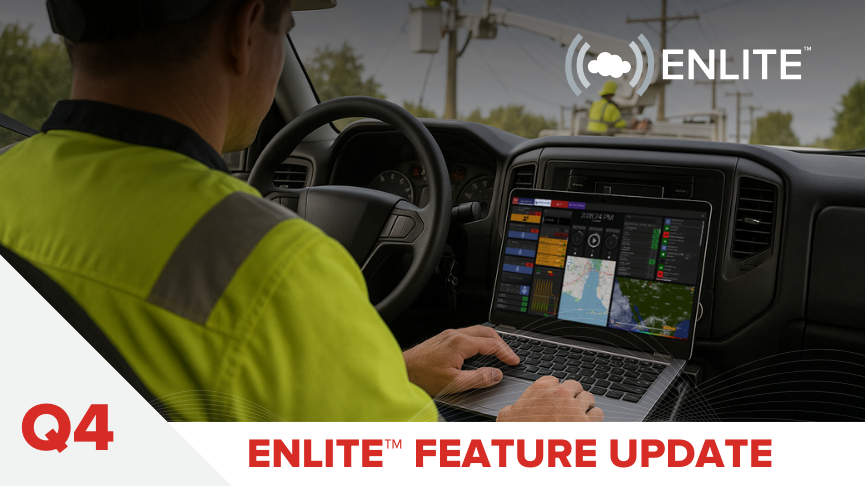
InterTalk was hard at work in Q4 2025 to enhance the UCaaS capabilities of Enlite for teams that require advanced messaging features, such as SMS, MMS, and internal chat between operators.
New Feature
UCaaS Messaging Platform
What’s New:
Enlite now includes a Unified Communications as a Service (UCaaS) messaging platform, delivering functional voice and text messaging options for internal and external communications. This allows users to experience Enlite’s end-to-end communications capabilities in a live operational environment.
Why This Matters:
This update showcases Enlite’s unified telephony and messaging architecture for real-world use by agencies that desire it. By prioritizing reliability, secure messaging, and dispatcher usability, UCaaS messaging adds to Enlite’s feature depth and the efficiencies/functionalities they bring to new and existing installations.
How It Works:
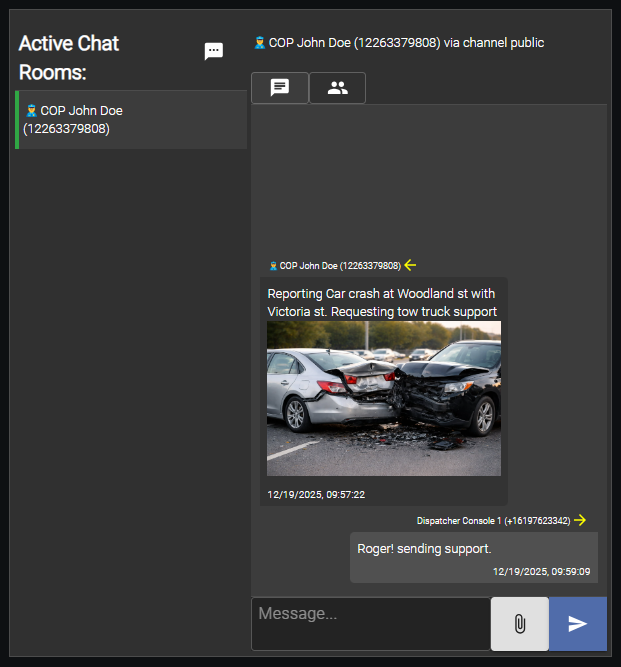
Enlite UCaaS provides a platform for voice and text messaging within Enlite. It can be placed directly within an Enlite mission to provide comprehensive SMS, MMS, and console-to-console messaging capabilities. This new feature also enhances the ability of Enlite to meet the needs of Next Generation 9-1-1 infrastructure to provide an easy-to-use platform for visualizing incoming mission-critical and public safety SMS to enhance overall situational awareness and reduce response times to critical incidents.
In Case You Missed It…
Check out the powerful new features added to Enlite in 2025
Channel Marker Tones
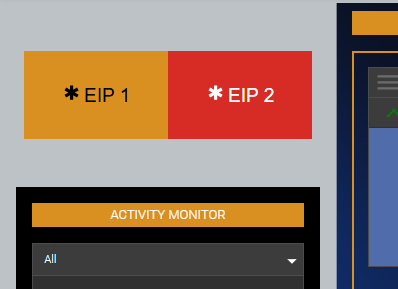
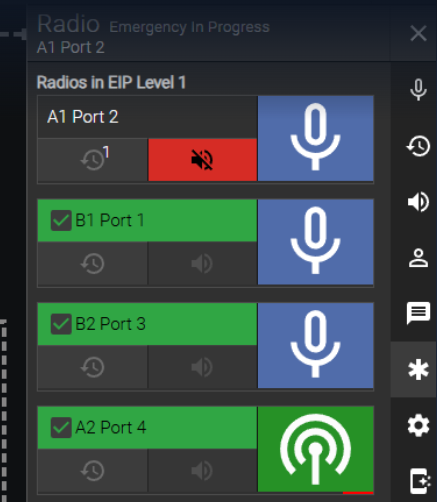
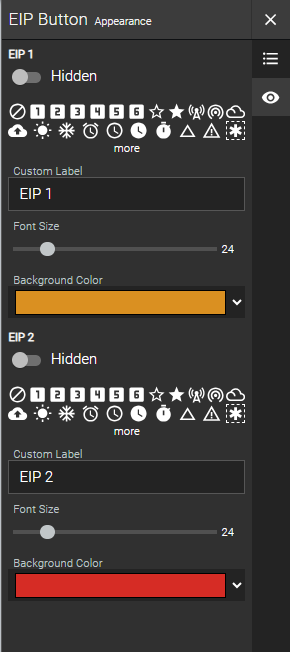
Channel Marker Tones introduces a new layer of command for dispatchers with two urgency levels—level 1 and level 2—providing both visual alerts and audible tones directly within the Enlite interface. Designed for fast, decisive action, Channel Marker buttons can be placed anywhere on a mission screen and target specific resources.
- Level 1: Triggers a local console alert with flashing radios – ideal for internal coordination.
- Level 2: Broadcasts an emergency tone (marker tone) over selected radios – used for field-level escalation.
- Flashing visual indicators, customizable colors, and real-time tray views provide situational clarity.
- Only the console that initiated the marker tone can end it, ensuring control and accountability.
Setup & Customization
- Add Channel Marker Tones via: Menu > Tools > Radio > Radio – EIP.
- Customize button icons, labels, font sizes, background colors, and behavior per level.
- Channel Marker settings include mission-wide radio flashing and dynamic radio involvement via Select/Unselect state.
NENA Headset Sharing
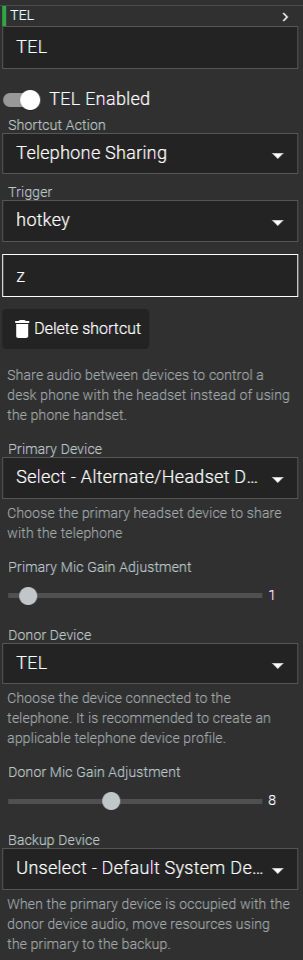
The new Headset Sharing feature enables hands-free integration between dispatch workstations and external audio devices, such as landline phones. By pairing a primary device (typically the dispatcher headset) with a donor device, audio can be routed intelligently—streamlining telephony without sacrificing radio control.
- Use the console headset to manage phone calls while automatically gating audio during PTT events.
- Maintain clear separation of call and radio traffic with fallback to a backup audio device.
- Initiate sharing with a Mission shortcut; exit anytime via the button displayed at the bottom of the mission screen.
Setup & Customization
- Define device roles via Menu > Account > Cluster Settings > Device Profiles.
- Associate audio outputs (e.g., TRRS 3.5mm jack) via Quick Access > Media Devices.
- Customize gain levels for both donor and backup devices.
Radio Behavior During Sharing
- Incoming radio audio reroutes to the backup device during sharing.
- During transmission, radio audio resumes on the original path while donor device audio is gated.


Macros
Macros bring next-level automation to the Enlite platform, empowering dispatchers to perform complex, multi-step operations with a single button press or system event. These programmable sequences help agencies act faster, more consistently, and with less chance of human error, especially during time-sensitive or high-pressure incidents.
Use Case Example: Structure Fire Response
When a structure fire is confirmed, a dispatcher can trigger a macro that:
- Starts an EIP Level 2 alert across assigned radios.
- Selects key radio channels for live monitoring.
- Activates external GPIO to open fire station bay doors, trigger alarms and deploy on-scene spotlight drone.
- Sends a Web Request to notify CAD or incident management systems.
- Delays briefly, then executes a follow-up macro to check backup readiness.
This allows the dispatcher to handle critical coordination tasks in seconds, with a single action.
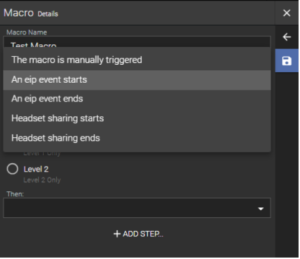
Macro Triggers:
Macros can be configured to run when specific events occur or be activated manually:
- The macro is manually triggered
- An EIP event starts or ends
- Headset Sharing starts or ends
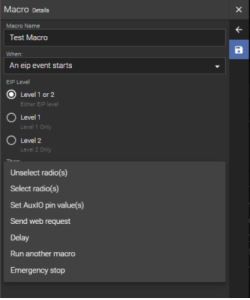
Available Macro Actions:
- Select or Unselect radio(s)
- Set AuxIO pin value(s)
- Send Web Request
- Insert a Delay
- Run another macro
- Stop all macros
These actions can be stacked in sequence or used to initiate other macros, enabling layered, intelligent workflows.
Configuration Interface:
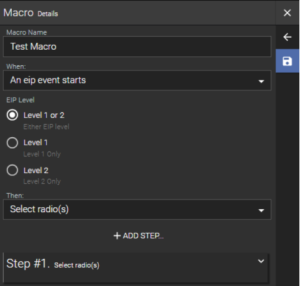
Macros are created and managed directly within the Enlite console UI.
From the Admin > Macros panel, authorized users can:
- Build macros using a point-and-click interface.
- Define trigger conditions and stack steps in real time.
- Deploy macros immediately to dispatcher screens for live use.
No external programming or console restart is required, allowing agencies to rapidly adapt their response procedures as needs evolve.
Access & Permissions:
Macro creation and deployment are permission-controlled. Only users with proper access rights can build or modify macros, ensuring that critical workflows remain protected and standardized.
Help Search
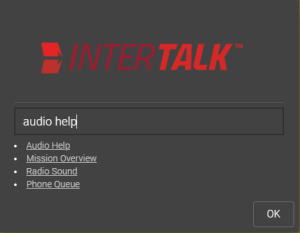
The new Help Search function transforms how users interact with Enlite’s in-console guidance system. Now, system integrators can search for keywords or phrases directly within the embedded help guide, instantly filtering results to locate relevant documentation and feature instructions.
- Quick Access to Knowledge: Reduces onboarding time and boosts confidence for new users.
- Embedded Console Integration: No need to exit the interface or navigate external documents.
- Context-Aware Support: Enables experienced dispatchers to refine their overall system knowledge and quickly adapt to new feature releases.
Whether you’re troubleshooting on the fly or exploring advanced features, Help Search ensures that answers are just a few keystrokes away.
Single Sign-On (SSO) with OpenID
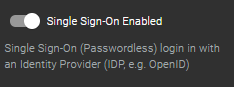
Enlite now supports Single Sign-On (SSO) using the OpenID Connect standard, streamlining user authentication and improving security for enterprise deployments.
What’s New:
- Enlite can now be configured to authenticate users via any OpenID Connect provider (e.g., Auth0, Google, Microsoft Azure AD).
- No new passwords or additional identity management systems (ISMS) are required, users log in with their existing corporate credentials.
- The implementation leverages open web standards, ensuring a robust and standards-compliant workflow (OAuth2.0, SAML).
Why This Matters:
- Minimizes potential security vectors by eliminating the need for separate Enlite-specific passwords and roles.
- Simplified Deployment:
- Eases onboarding for large organizations by integrating with existing IT infrastructure and user directories.
How It Works:
- SSO is enabled in Cluster Settings by an administrator.
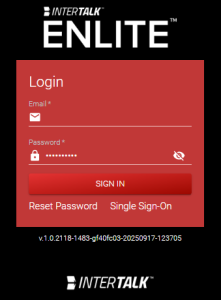
- Upon login, users are redirected to the organization’s OpenID provider for authentication.
- Once authenticated, users are granted access to Enlite without needing to manage a separate password.
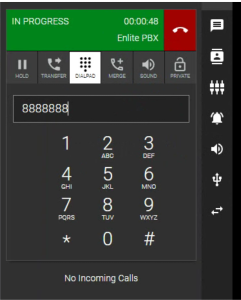
Use Dialpad While in a Call to Send DTMF
Enlite now allows dispatchers to use an on-screen dialpad during active telephone calls to send DTMF (Dual-Tone Multi-Frequency) tones. This enhancement streamlines telephony workflows, enabling direct interaction with automated phone systems, IVRs, and remote devices without leaving the Enlite console.
What’s New:
- While on a live call, users can open the dialpad interface and send DTMF tones directly.
- Supports all standard DTMF digits (0-9, *, #) for seamless interaction with external systems.
- The dialpad is accessible from the active call window, ensuring quick access without disrupting ongoing communications.
- Works with both SIP and PSTN telephony integrations supported by Enlite.
Use Cases:
- Navigating IVR menus, entering access codes, or controlling remote equipment during a call.
Why This Matters:
- Eliminates the need for external phones or hardware dialpads, keeping all call control within the Enlite interface.
- Ensures compatibility with a wide range of telephony systems and automated services that require DTMF input.
Macro Action – Move Audio
Enlite now enables integrators and administrators to template and automate advanced audio movement behaviors using the Macro system. This update provides granular control over how and where audio streams are routed in response to user actions or system events.
What’s New:
- Integrators can now expose Enlite’s low-level audio movement feature as a configurable macro action.
- Macros can be set to change a resource’s assigned audio profile
- This allows for precise control over where audio is routed when a resource (e.g., a radio) is selected or unselected.
- The new “Move Audio” macro supports a “headset sharing” model, focusing on physical devices rather than just sound roles.
Macros can specify:
- Primary Device: The device that should receive new audio after an event (e.g., selection or emergency call).
- Backup Device: The device to which the previous audio should be moved.
These audio movement actions can be coupled with explicit select/unselect macro actions to ensure the correct audio stream is always routed to the intended destination.
Example: Upon receiving an Emergency Request to Talk (E/RTT), the system can automatically move any radio audio in the user’s ear to another device and direct the emergency audio to the primary device.
Why This Matters:
- Agencies can tailor audio routing to match operational needs, supporting complex scenarios like headset sharing or dynamic audio reassignment during emergencies.
- Reduces manual intervention and ensures audio is always routed to the right place at the right time.
Fine Adjustment Mode for Tool Layering
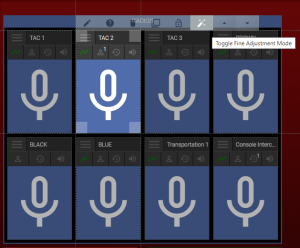
We’ve enhanced the mission editor’s tool movement and layering controls with a new Fine Adjustment Mode, providing users with greater precision and flexibility when arranging tools.
What’s New:
Activation: Select the Fine Adjustment Mode button on the highlighted tool while in edit mode.
Behavior: Instead of the default “swap tools” approach, Fine Adjustment Mode allows you to move a tool’s z-index one step at a time, similar to professional design tools like Photoshop.
Precision: Tools can now be moved in a 1×1 grid, enabling pixel-perfect alignment, ideal for stacking buttons, overlays, or other interface elements.
Control: This mode is designed for users who require precise control over tool stacking and are familiar with z-index concepts.
Fine Adjustment Mode Advantages:
Granular Control: Adjust tool order step-by-step for exact placement of Maps, Logos, Backgrounds and Images, or Tool borders/Labels.
Power User Friendly: Perfect for advanced users who need detailed control over interface layout.
IRR Download Format – WAV/MP4 Support
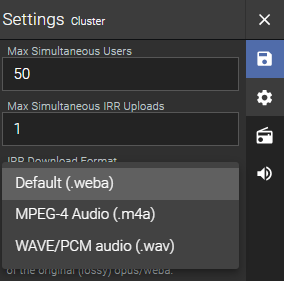
The IRR (Instant Recall Recorder) download feature has been enhanced to support more universally compatible audio formats, making it easier for dispatchers and partner agencies to access and share recordings.
What’s New:
IRR audio files can now be downloaded in either .wav or .mp4 (.m4a) format, depending on which results in the smallest file size.
Why This Matters:
Improved Compatibility: The previous .weba format was not widely supported and required manual conversion for many users. The new formats are easier to open, play, and transfer to other parties, streamlining workflows for dispatchers and external agencies.
How It Works:
- Users can select their preferred download format (WAV or MP4) in the Enlite > Menu > Cluster Settings under IRR Download Format.
- The system will transcode the recording to the selected format before download.
FAQ
Question: What is the support progression for InterTalk customers and dealers? All information can be found on our support page here: https://intertalksystems.com/support/. Depending on the ServiceFirst agreement, customer technical support can be requested in a few ways.
- Online submission using a link to the Client Care software: https://intertalk.atlassian.net/servicedesk/customer/user/login?destination=portals
- Phone submission using the Client Care number: +1 833 55-ITALK (Option 1)
NOTE: Online submissions via the Client Care system are actively monitored during business hours only (0900-1700 Atlantic time [ GMT +4]). For any urgent issues (“System Down” or “System Impediment – Callback Required”) that occur outside of business hours, please submit support requests via Phone Submission to ensure a timely response.


